Managing Rich Text Editor Profiles in SitecoreAI

Index
SitecoreAI's Rich Text Editor (RTE) is powered by CKEditor 5. Out of the box it comes with a default toolbar, but what if you need to customize it by adding style definitions, adding/removing/moving toolbar buttons, or creating multiple profiles? You can, as of Jan 13, 2026:
There is an important difference between how RTE profiles work in SitecoreAI vs. XM/XP. There is no UI for managing this in SitecoreAI. You have to use the REST API.
A lot of this is already covered in the docs, but I have a few extra tips and tricks that I learned while playing around with it for the first time.
The Old Way of Customizing RTE Profiles Doesn't Work Anymore
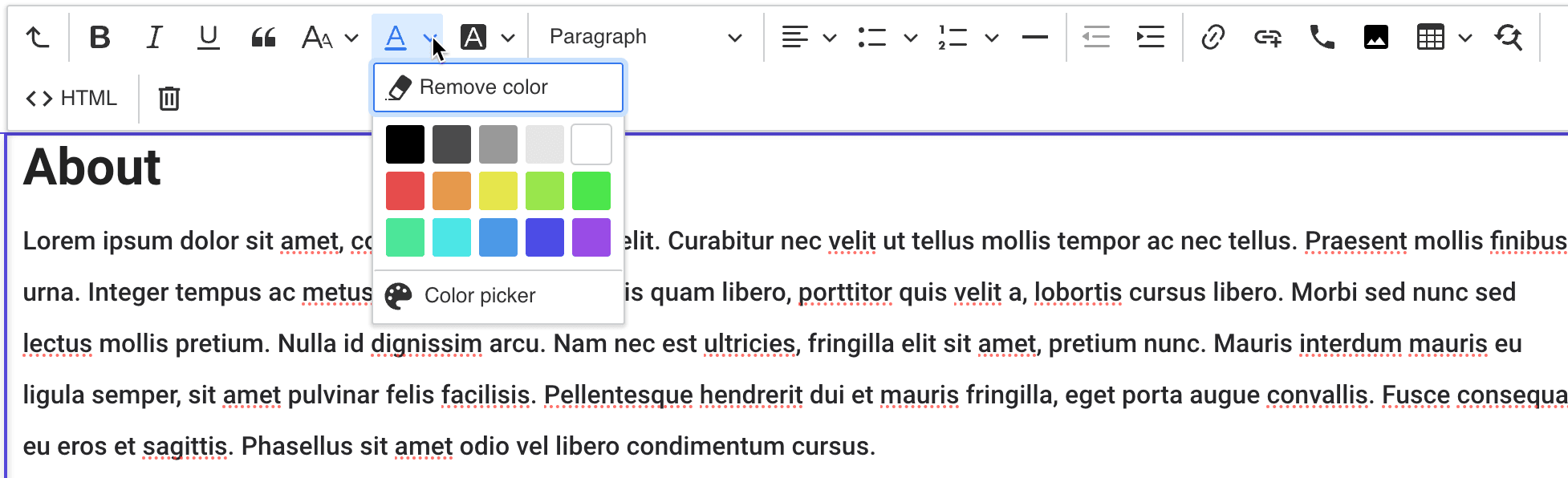
While it's still technically possible to mess around with RTE profile items in the core database, it doesn't actually do anything. Rich Text fields simply do not pick up the referenced RTE profile item ID in the Source field anymore. No matter what you do, you're still going to see the default toolbar:

So...

Let's learn the new way.
Step 1: Authentication
SitecoreAI uses OAuth 2.0 client credentials. You'll need a Client ID and Client Secret from the SitecoreAI Deploy Portal under Credentials > Client credentials.
$token = (curl.exe -sS -X POST "https://auth.sitecorecloud.io/oauth/token" ` -H "Content-Type: application/x-www-form-urlencoded" ` --data-urlencode "client_id=<CLIENT_ID>" ` --data-urlencode "client_secret=<CLIENT_SECRET>" ` --data-urlencode "grant_type=client_credentials" ` --data-urlencode "audience=https://api.sitecorecloud.io" ` | ConvertFrom-Json).access_tokenThe token lasts for 24 hours
Step 2: Create the Profile
The editor profile API is here:
https://xmapps-api.sitecorecloud.io/api/ui/v1/editorprofiles
You POST a JSON payload with a name and a value — the value being a stringified CKEditor 5 configuration object.
I put it in a JSON file to avoid escaping nightmares (more on that below):
{ "name": "Full", "value": "{ \"toolbar\": { \"items\": [ \"bold\", \"italic\", \"emphasis\", \"underline\", \"blockQuote\", { \"group\": \"formatting\", \"label\": \"Formatting\", \"icon\": \"text\", \"items\": [ \"strikethrough\", \"subscript\", \"superscript\", \"|\", \"removeFormat\" ] }, \"fontColor\", \"fontBackgroundColor\", \"|\", \"heading\", \"|\", \"alignment\", \"bulletedList\", \"numberedList\", \"|\", \"outdent\", \"indent\", \"|\", \"link\", \"internalLink\", \"phoneLink\", \"|\", { \"group\": \"insert\", \"label\": \"Insert\", \"withText\": false, \"icon\": \"plus\", \"items\": [ \"sitecoreSelectMedia\", \"insertTable\", \"horizontalLine\" ] }, \"|\", \"sourceEditing\", \"|\", \"sitecoreResetFieldValue\" ] } }"}curl.exe -sS -X POST "https://xmapps-api.sitecorecloud.io/api/ui/v1/editorprofiles" ` -H "Authorization: Bearer $token" ` -H "Accept: application/json" ` -H "Content-Type: application/json" ` -d "@rte-profile-full.json"The response gives you the profile's generated id. You'll need it to assign the profile to a site.
Docs: https://api-docs.sitecore.com/sai/sites-api/editor-profiles
Step 3: Assign It to a Site
Creating a profile doesn't automatically apply it anywhere. You need to PATCH the site object with the profile ID. Once again, I put it in a JSON file:
{ "editorProfiles": ["4b78e6ec-aecb-40a6-ac8c-557143464138"]}curl.exe -sS -X PATCH ` "https://xmapps-api.sitecorecloud.io/api/v1/sites/<SITE_ID>?environmentId=main" ` -H "Authorization: Bearer $token" ` -H "Content-Type: application/json" ` -d "@site-editor-profile.json"To find your site ID, hit the GET /api/v1/sites endpoint first. You can also use Sitecore's MCP to do that discovery conversationally.
To remove the custom profile and go back to the default, PATCH with an empty array:
{ "editorProfiles": []}Docs: https://api-docs.sitecore.com/sai/sites-api/sites/updatesite
Surprises
1. PowerShell's curl Isn't curl
Interestingly, Sitecore's API docs shows curl requests using the curl command but no example of how to do it in PowerShell. In PowerShell, curl is an alias for Invoke-WebRequest, which has completely different syntax than curl. For example, the -H flag doesn't work, --data-urlencode doesn't work, and neither does line continuation with \.
Agents get this wrong all the time.
Fix: Use curl.exe (with the .exe) to invoke the real curl binary. Or use PowerShell-native Invoke-RestMethod.
2. PowerShell Destroys Your JSON
Even with curl.exe, passing JSON inline via -d in PowerShell is no good, because PowerShell interprets the backslash escapes before curl ever sees them:
# What you type:-d "{\"editorProfiles\": [\"abc-123\"]}"
# What curl receives:{editorProfiles: [abc-123]}   # Broken JSON
Fix: Always put your JSON in a file and use the @ prefix:
-d "@path/to/file.json"This totally bypasses PowerShell's string interpolation. I learned this the hard way after getting cryptic 400 Bad Request errors about invalid property names.
3. value Creates, profile Updates
This was the most subtle gotcha. When you create a RTE profile with POST, the API accepts the toolbar configuration under the field name value:
{ "name": "Full", "value": "{...toolbar config...}" }But when you read the profile back, the API returns it as profile:
{ "id": "...", "name": "Full", "profile": "{...toolbar config...}" }And when you update with PATCH you need to use profile; not value, like you might expect.
If you use value on a PATCH request, the API silently ignores it. Your name field updates fine, but the toolbar config stays unchanged. No error, no warning — it just doesn't do what you expect.
I spent a good while staring at unchanged toolbar configs before catching this.
After a successful PATCH, the response was a massive single-line JSON blob. When I copied and pasted the output into Notepad++ and attempted to format it with a JSON prettifier, it reported parsing errors. I thought I may have broken the site configuration.
Turns out it was just PowerShell's terminal buffer wrapping and duplicating chunks of the output, which is a display artifact; not an actual API problem. The response was valid JSON; the terminal just rendered it poorly.
Fix: If you need to verify a response, pipe it through PowerShell's JSON formatter:
curl.exe -sS "https://xmapps-api.sitecorecloud.io/api/v1/sites" ` -H "Authorization: Bearer $token" ` | ConvertFrom-Json | ConvertTo-Json -Depth 10API Endpoints Quick Reference
| Action | Method | Endpoint |
|---|---|---|
| Auth token | POST | https://auth.sitecorecloud.io/oauth/token |
| List profiles | GET | .../api/ui/v1/editorprofiles |
| Create profile | POST | .../api/ui/v1/editorprofiles |
| Update profile | PATCH | .../api/ui/v1/editorprofiles/{id} |
| List sites | GET | .../api/v1/sites |
| Update site | PATCH | .../api/v1/sites/{id}?environmentId=<NAME> |
Base URL for all endpoints except auth token: https://xmapps-api.sitecorecloud.io
Takeaways
- Use JSON files; not inline JSON. PowerShell and nested JSON escaping aren't great.
- Use
curl.exe; notcurl. POSTusesvalue,PATCHusesprofile. The most important gotcha. The field name changes between create and update.- Creating a profile doesn't assign it. You need a separate PATCH to the site endpoint.
- Don't trust PowerShell's terminal rendering of long JSON. Pipe through
ConvertFrom-Jsonif you need to inspect responses.
The whole process takes about five minutes once you know the pattern. Getting to that point took considerably longer.
100% Confirmed Observations
Now here are the golden nuggets I learned while going down the rabbit hole:
- The new CK Editor is missing a few features that I'd like to see added to improve feature parity with the old RTE:
- A special character selector (copyright symbols, etc.)
- Snippets
- There's a bit of drift between what the docs say and what you get with the default profile. For example, this page mentions support for a find and replace button, but it doesn't actually appear in the default toolbar as of February 2026, and it isn't listed in the list of available toolbar buttons. It DOES work if you add it to the profile config via the
findAndReplaceid.

- If you have no profiles assigned to a site, you get the default one that Sitecore provides, which as I just mentioned, isn't guaranteed to be the full toolbar.
- When you assign a profile to a site, the first item in the
editorProfilesarray will be used as the default profile for all rich text fields on the entire site. - There is currently no way to add a profile to a rich text field via the API. You can only assign a profile to a site, and then the profile is used for all rich text fields on the site.
- The only utility in having multiple profiles assigned to a site right now is that it makes it simpler to switch between them, but as of now, why would you? The whole site uses the first profile in the list.
I can already hear the feature requests coming in!
Rich RTE Poor RTE,
-MG